
Bananaverse · Image tools
What would you like to make of it?
Start with an idea or an image. Make something new, change its direction, or fix the one thing that gets in the way.
Turn a description into an image you can download and build on.
Open Image Generator →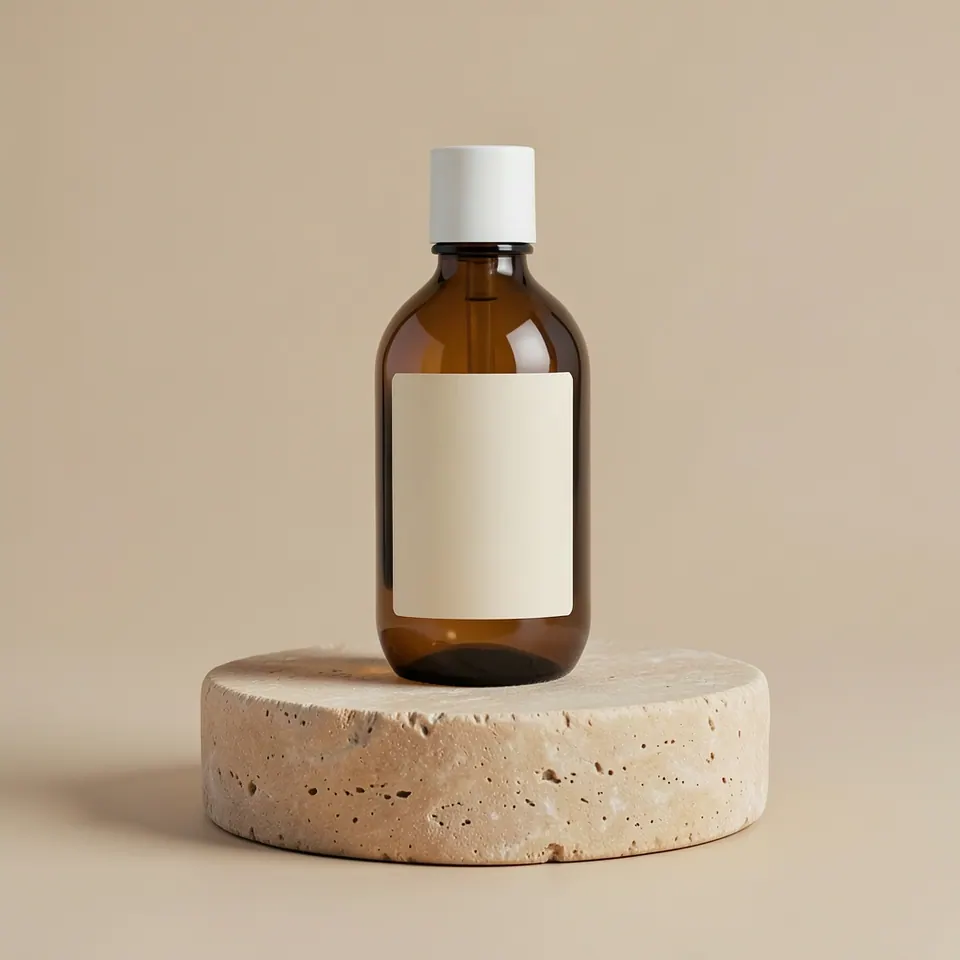
01 / Create
An image starts with a sentence.
Describe the subject, setting and look. Generate a first version, check the details, then refine the idea or take the result into another tool.
Open Image Generator →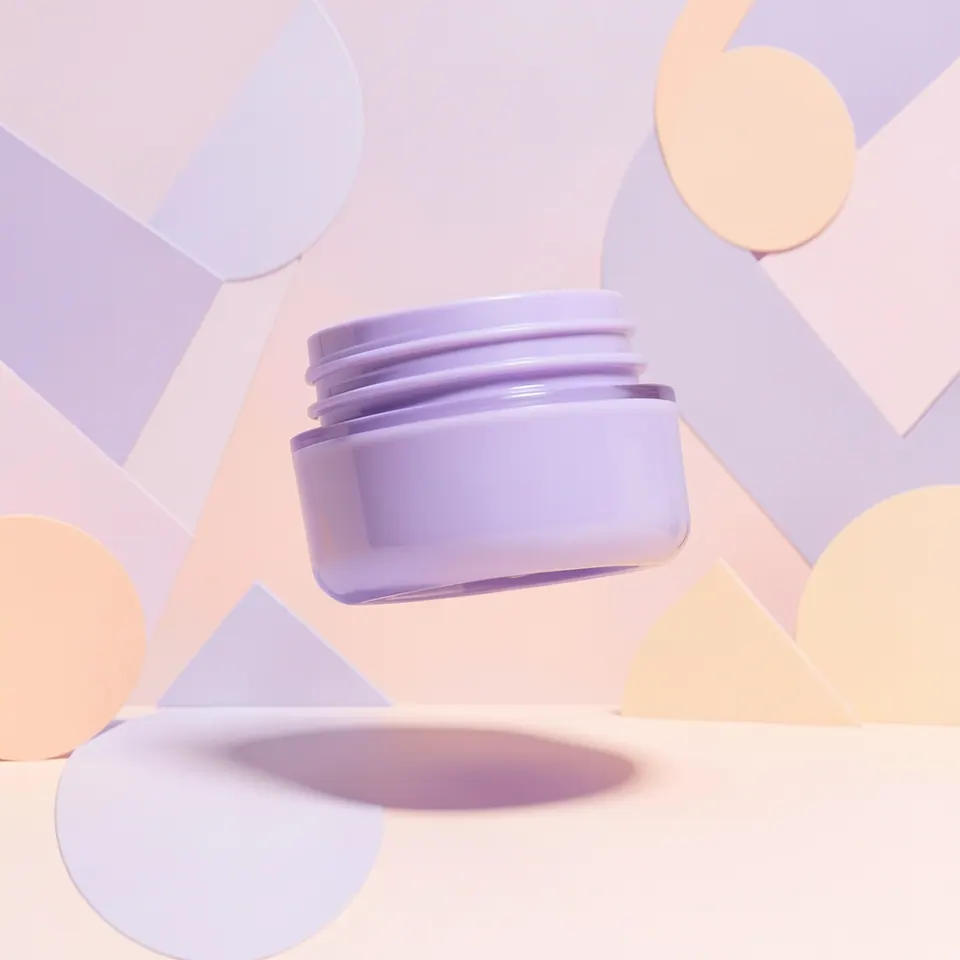
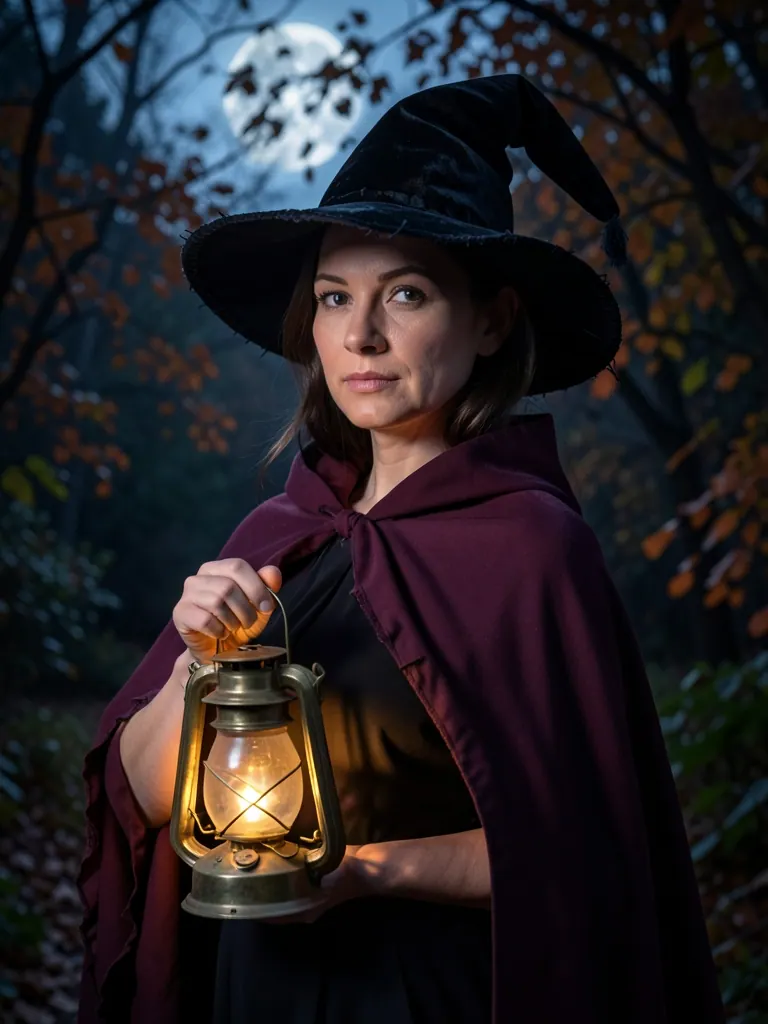
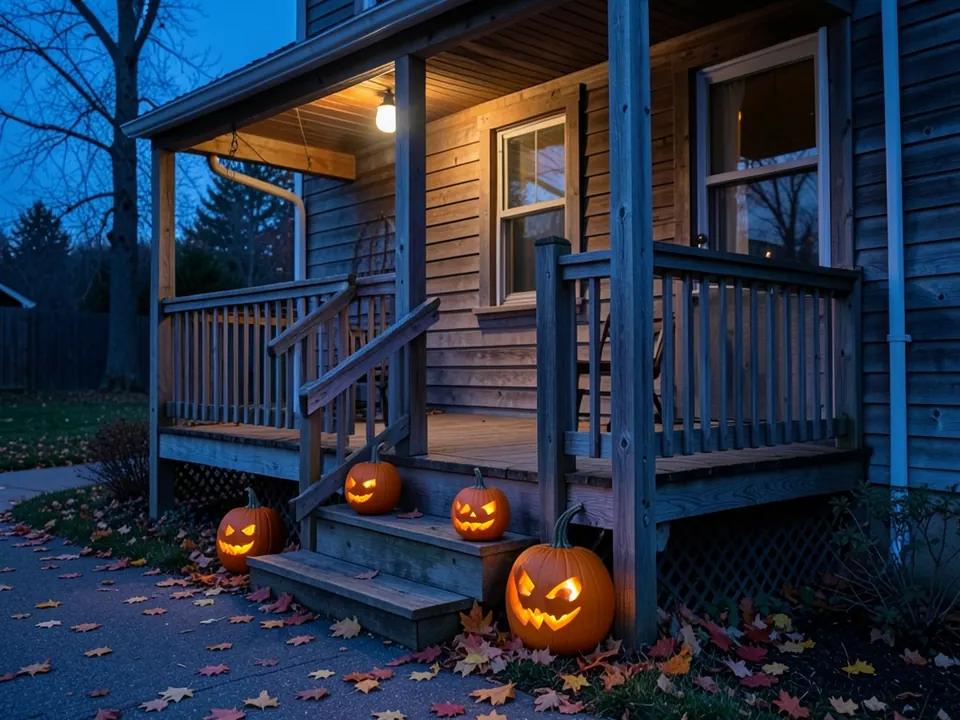
These are generated concepts, not photographs of real products or people. A prompt gives direction; it does not guarantee exact text, counts or packaging. Explore prompts you can adapt →
02 / Transform
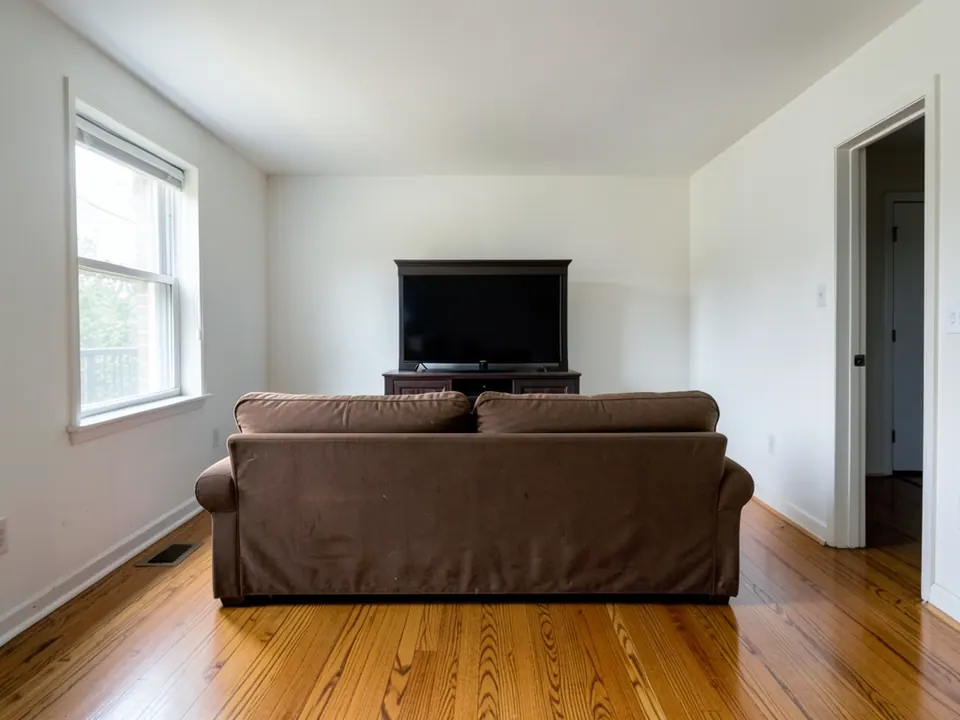
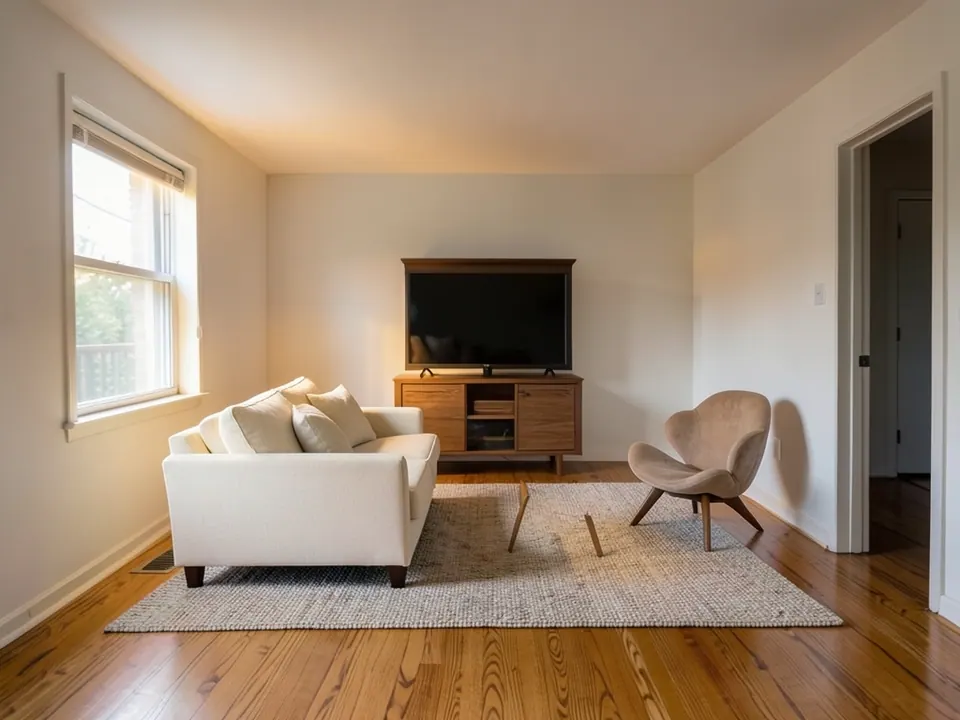
Keep a starting point. Try a new direction.
Use an existing image to explore a different style, mood or setting. This is for a new interpretation of the whole image—not for removing one small distraction.
03 / Edit
Say what should change.
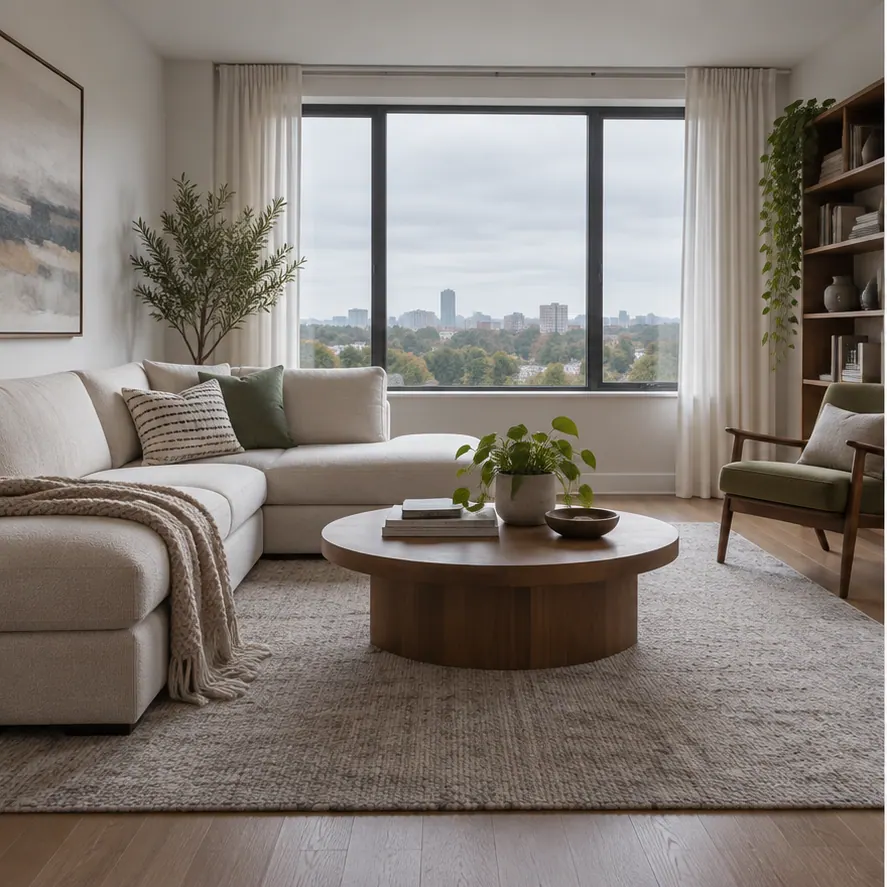
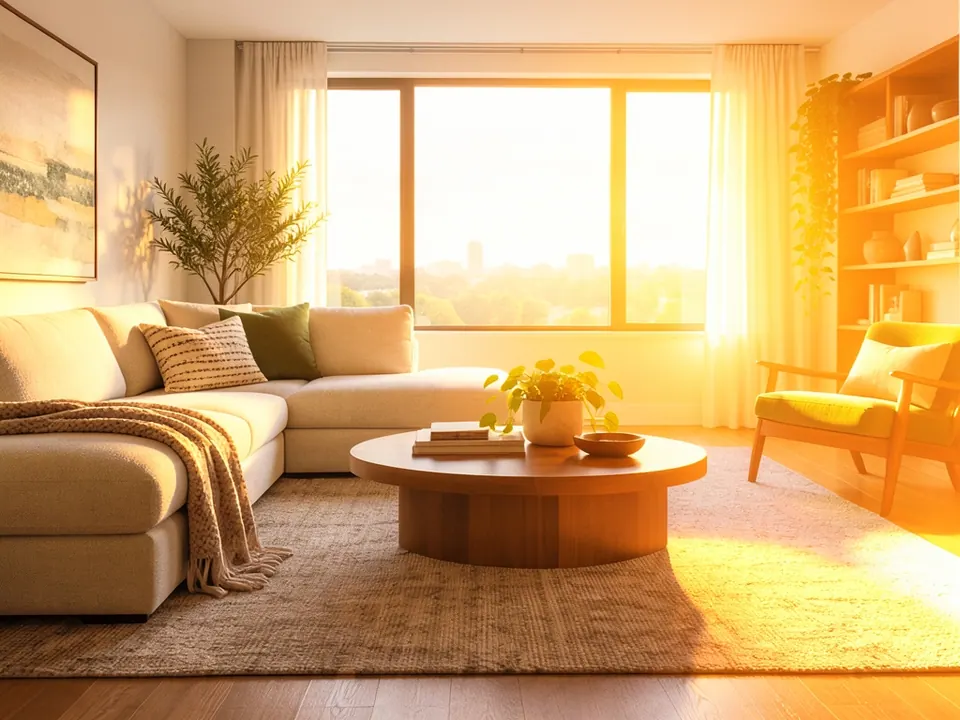
A warmer light. A different backdrop. An added detail. Give the editor a focused instruction and explain what matters in the original.
“Add warm golden-hour light from the right. Keep the room, furniture and composition.”
04 / Cleanup
Keep the photo. Remove the problem.
A person in the wrong place, text on a photo, a crease or an unwanted background. Choose the result you need, then inspect the edges, surface or detail that matters.
Open Image Cleanup →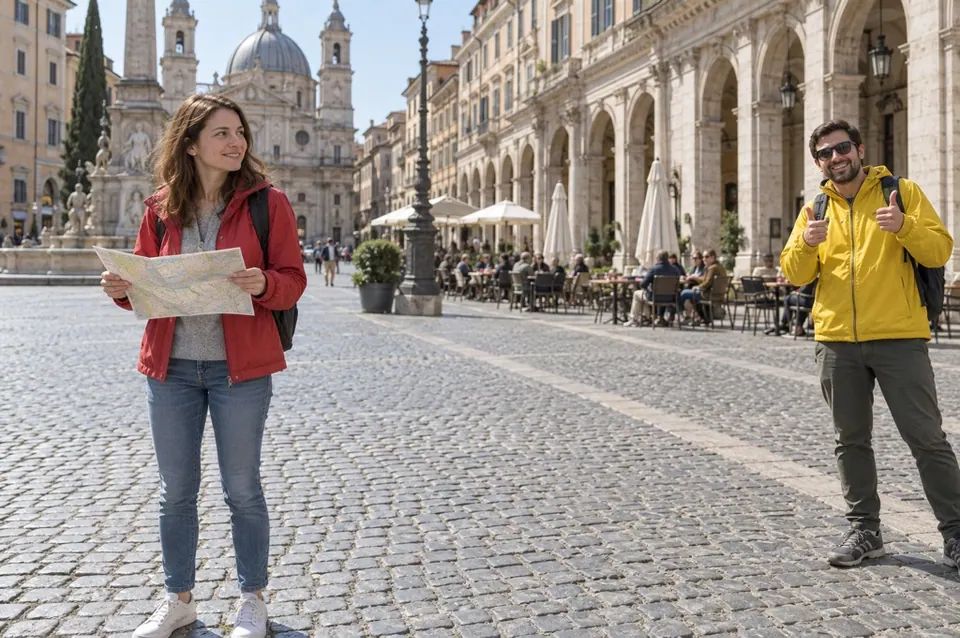
The dashed area explains the selection to make; it is not an automatic detection result.
Remove Person
Select the whole unwanted person, then refine the selection around people or objects you want to keep. Inspect the reconstructed pavement, furniture or scenery; hidden detail is rebuilt, not recovered.
Open Remove Person →05 / Continue
The first result doesn’t have to be the last.
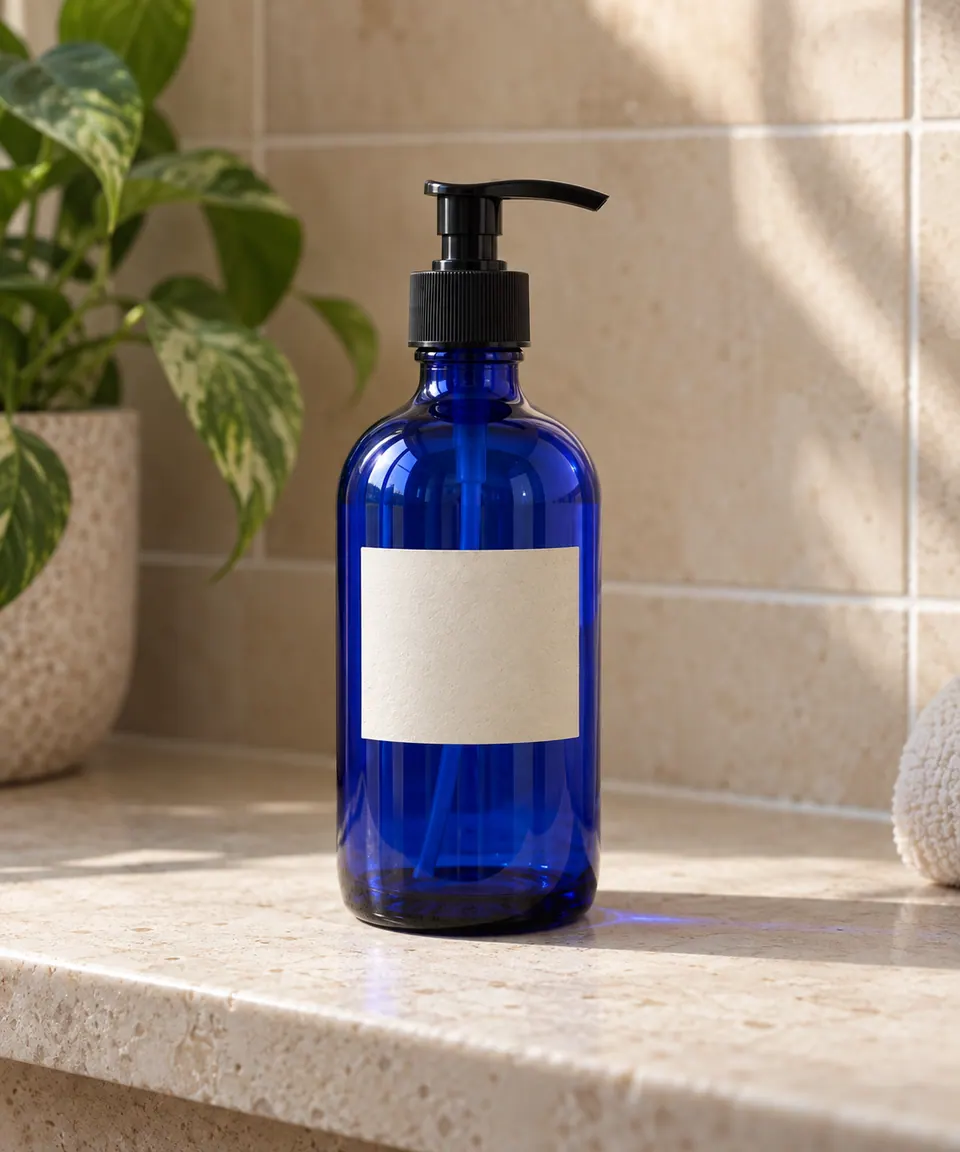
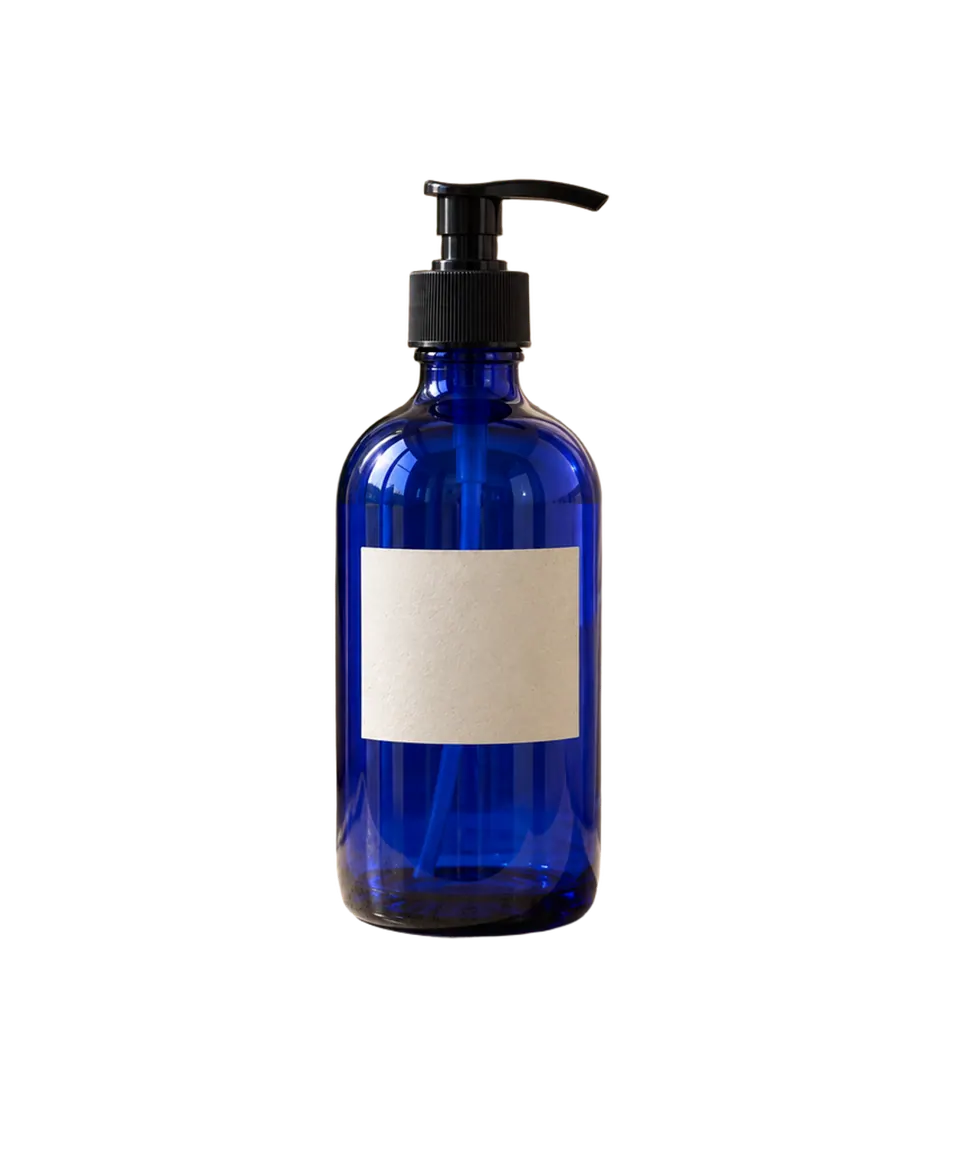
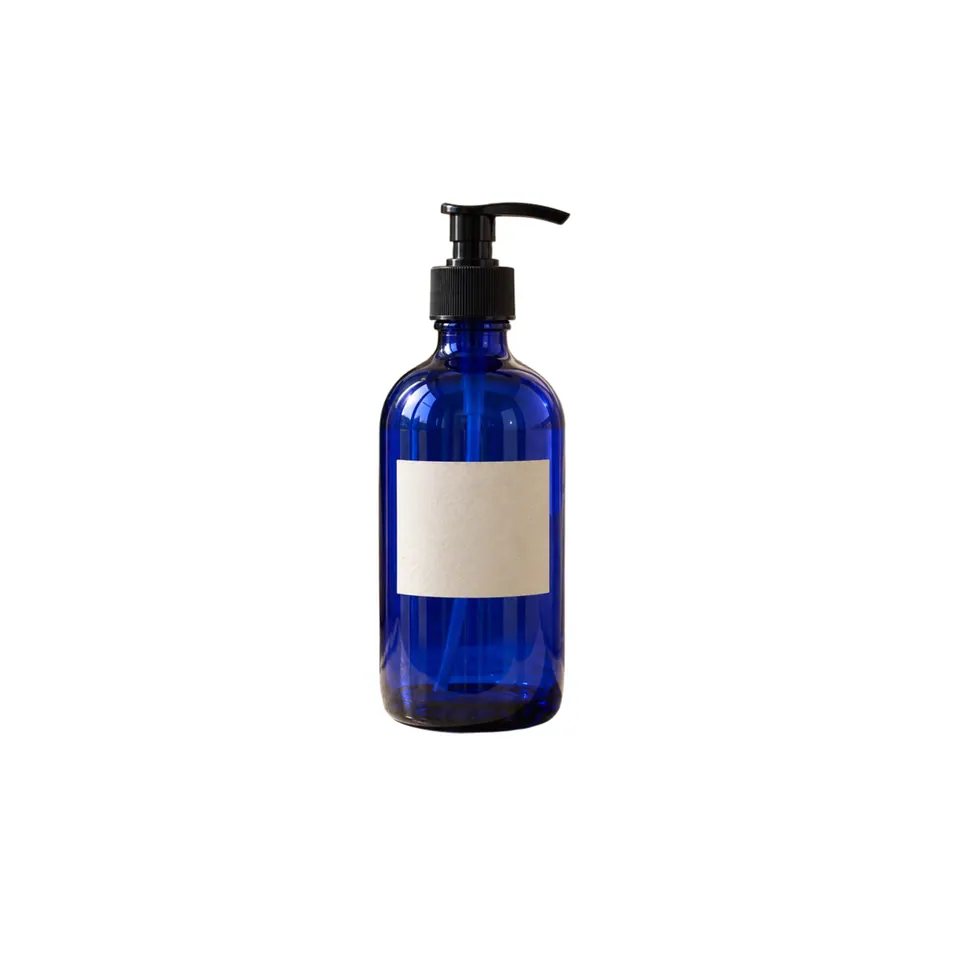
A source photo becomes a cutout, then a finished product canvas. You can stop and download, or keep working from the result instead of starting again.
A little direction helps